Background: licensed stock (Pexels), not an AI output
AI Video Generator
Flying Car
Make a flying car video with your own photos. Turn an ordinary traffic jam into an impossible escape, send your vehicle above the road, or put yourself in the driver’s seat. Choose a scene, upload your references, and check the cost before creating your version.
Watch an example first, or start with the photos you already have. These are fictional AI creations, not recordings of real vehicle capabilities.
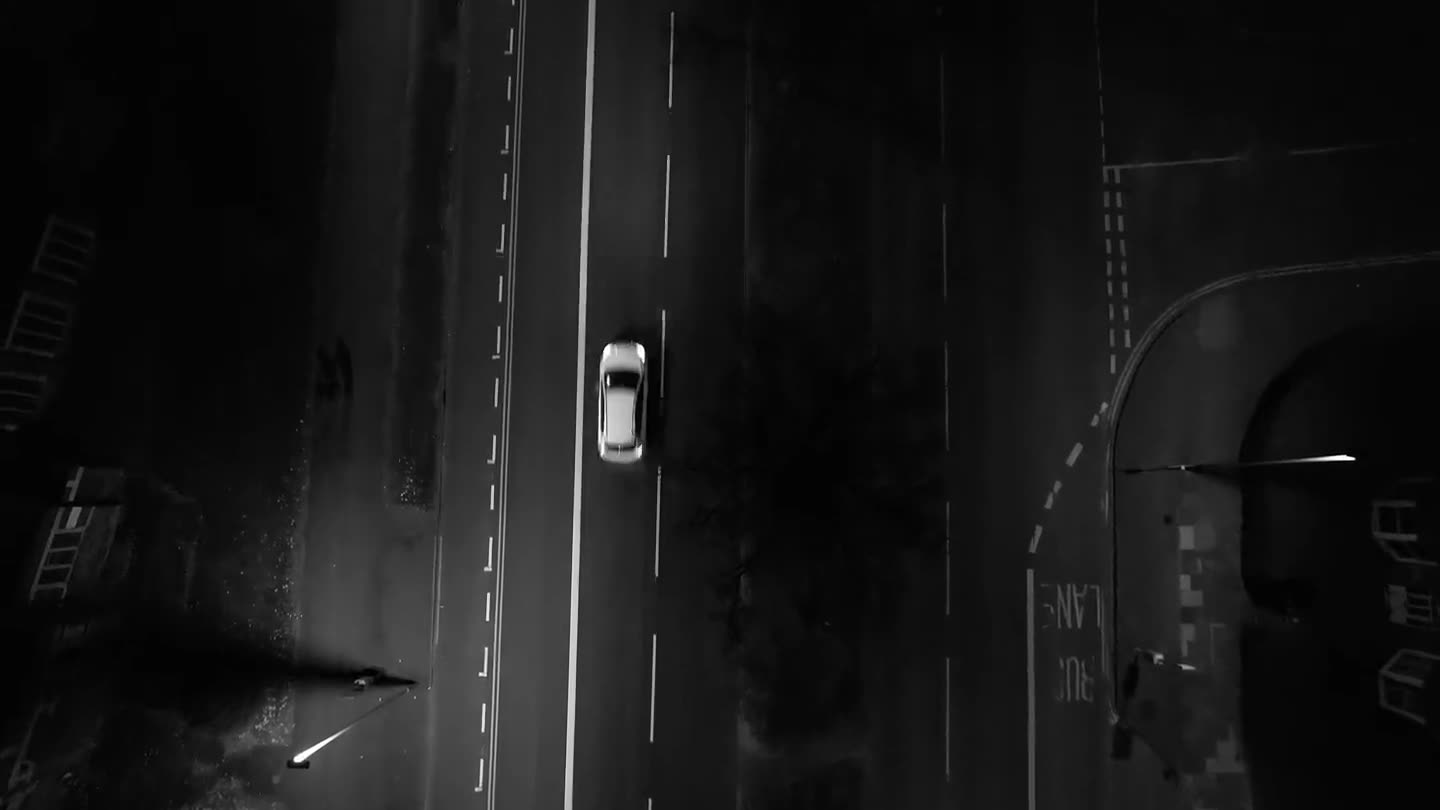
A convincing flying car clip starts with something familiar: a stationary queue, an everyday vehicle, and a driver who has somewhere to be. The surprise comes when the wheels leave the ground. Keeping the setup simple makes the impossible action easy to follow.
Browse the available examples to compare camera positions and endings. Look at the uploaded reference beside the finished result, then choose the scene you would like to recreate. Examples are marked as AI creations; their appearance illustrates a particular generation, not a guarantee that every attempt will look identical.
The flying car video generator uses your images to guide the subject and a prepared template to direct the movement. You do not need to invent a long script before trying it.
Choose your scene
Traffic Escape
Turn a traffic queue into a short story. The driver notices the delay and presses a button. An outside shot establishes the lift, then a following camera shows the vehicle travelling forward above the stopped cars and descending onto a clear stretch ahead. This flying car template puts the surprise and the destination in the same story.
Make My Car Fly
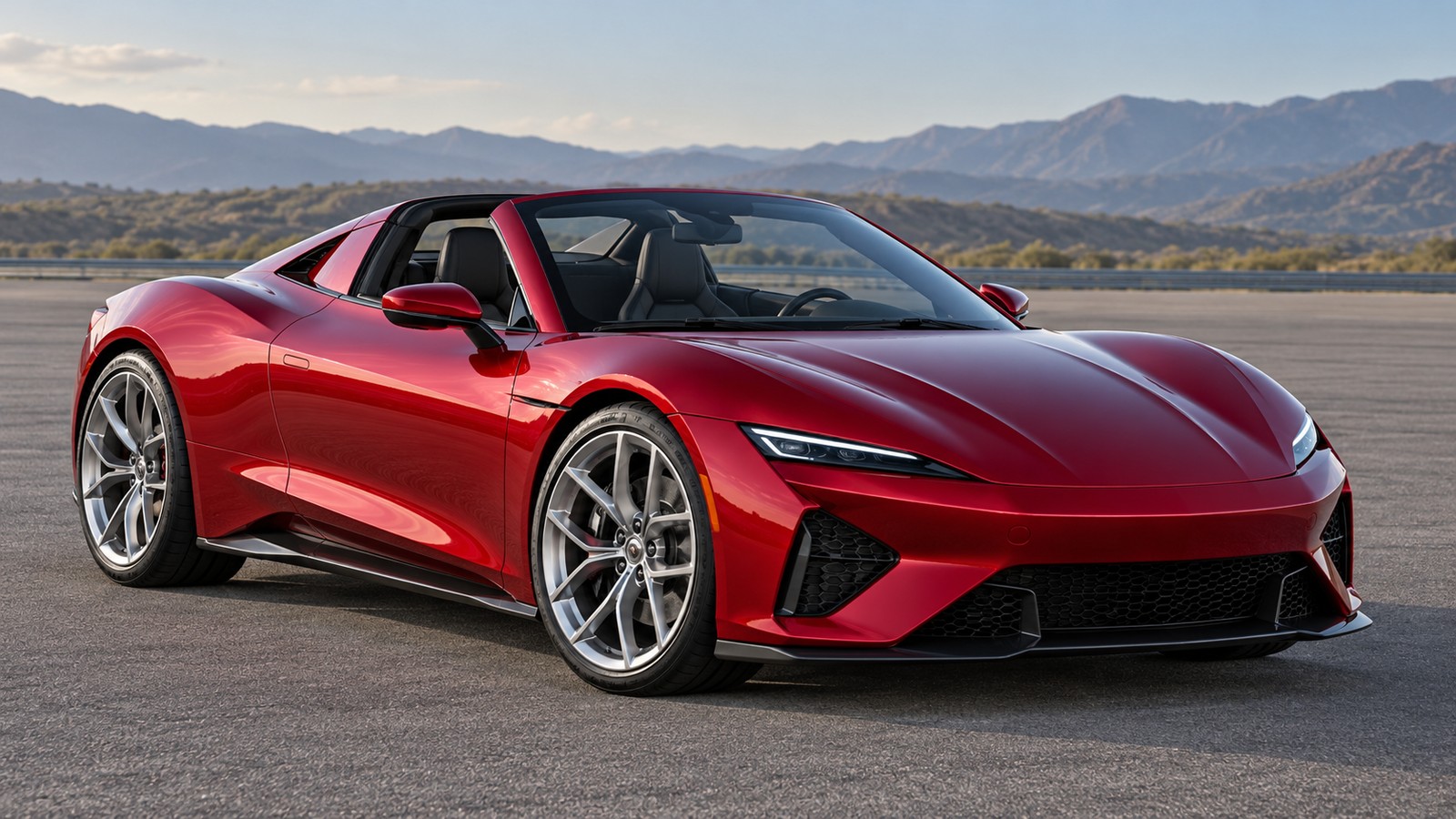
Give the vehicle the whole spotlight. A steady exterior view follows a simple rise, a short forward movement, and a return to the ground. Choose Make My Car Fly when you want to compare the photographed body shape, paint, and wheels with the generated result without several camera changes.
Day One
Stay in the back seat while the world outside changes. The driver remains calm as the view through the windshield rises above the queue. This flying car scene relies on a familiar cabin and an unhurried reaction, rather than an outside spectacle. Its ending remains airborne; choose Traffic Escape for a landing.
Only enabled scenes can be submitted. The settings beside each option describe its actual supported format, duration, and reference requirements.
Start with your car, your selfie, or both
One vehicle photo
Use a sharp picture with the complete vehicle visible. Its body, paint, lights, and wheel design provide the visual reference. A flying car video from a photo is a practical starting point when the vehicle matters more than a recognizable driver. The exterior scene does not require you to supply a portrait.
One portrait
Choose selfie mode to put a person into a prepared scene with a generic vehicle. Use a photograph of yourself or someone who has agreed to participate. Your portrait guides the person's appearance, while the template supplies the car and setting. It cannot reproduce a personal vehicle that you have not supplied.
A portrait and a vehicle photo
Give the two images separate jobs: one identifies the driver and the other identifies the vehicle. Keep each subject clear. This flying car AI workflow is intended for people who want both references in the story. Available combinations depend on the selected scene; check the upload instructions before continuing.
Create your video step by step
Choose a scene. Compare the enabled previews and decide whether you prefer an exterior launch, a traffic escape, or the fixed cabin viewpoint. Scene selection updates the same studio rather than sending you to a different account.
Upload and inspect. Add the requested images and check their previews. Confirm that the correct person and vehicle have been selected. Replace an unclear photo before starting a paid job.
Review the quote. Check the duration, aspect ratio, output quality, and total credit requirement displayed for your combination. Any necessary preparation step belongs in that quote, not in a surprise charge afterward.
Confirm generation. Start your flying car video when the references and cost look right. Follow the actual task status. Refreshing the page should return you to that job rather than create another charge.
Review and download. Play the completed MP4, inspect its full sequence, and save it before the displayed retention period ends. Creating another version is a separate choice with its own price.
Help the model recognize your references
Choose a vehicle photograph that shows its outline without another car blocking it. Keep the wheels and roof in frame. Heavy reflections, darkness, and dramatic cropping can make the intended details harder to communicate. A clear everyday photograph can be more useful than a polished image that hides half the body.
For portraits, keep the face clear and evenly lit. Avoid sunglasses or a hand covering important features. With combined references, review the two previews separately: a good face photo does not compensate for a vehicle image with missing wheels.
Compare your flying car result with the source images. Check the silhouette, paint, facial features when visible, and direction of movement. The model may change details, so exact reproduction is not promised. Try a clearer reference or a simpler scene when those details matter more than a complicated stunt.
Change one input or setting at a time. That makes it easier to understand what improved the next attempt, rather than guessing which of several changes helped.
Find the right kind of flying car video
The phrase can lead to several different things: a manufacturer's demonstration, a fictional edit, a game clip, or a tutorial. This studio serves the creative version. Its flying car AI video generator makes entertainment from photographs; it does not sell vehicles or provide real driving instructions.
Looking for the Tesla flying car trend? The Roadster guide separates source footage from AI remakes and explains how to create a related scene. A manufacturer's demonstration does not authenticate every repost or every video carrying the same caption.
You can enjoy the visual idea without owning a particular brand. Your ordinary sedan, van, or sports coupe can supply a reference, subject to the scene's supported inputs. Keep expectations focused on an original generated clip, not an exact copy of somebody else's video.
An original prompt you can adapt
A useful flying car AI prompt identifies the vehicle, describes the movement in order, and gives the camera a clear position. Here is a simple creative starting point, not an original creator's private script or a tested guarantee:
Show the referenced vehicle stopped in a short queue on a sunlit road. Begin outside the driver's window as one plain button is pressed. Cut behind the vehicle as separate underbody thrusters lift all four attached wheels above nearby roofs. Follow it moving forward over the queue and descending onto an empty section ahead. Preserve the same person, paint, body shape, and direction. Use fictional effects, without collisions or readable text.
For more control, open the prompt guide for reference instructions, camera notes, and common corrections. Avoid asking one short clip to perform every possible stunt.
Understand the price and the result
Your selected scene determines the available settings. A longer duration, different quality option, or additional preparation can change the cost. Review the displayed quote before confirming your flying car generation. A pack purchases credits; the price of a pack is not automatically the price of one finished video.
The studio uses one-time credit purchases rather than a required subscription. Technical failures release the credits reserved for the affected job. A completed result with unwanted visual details is handled under the published support policy, which explains eligibility and available remedies.
Output resolution, aspect ratio, duration, and sound status are displayed separately. Check whether a clip is silent, includes generated sound, or uses separately produced effects. Do not assume that an example's soundtrack is included in every export.
Share with a clear caption
Before posting, play the exported file on your phone and check the framing. Keep important details away from areas covered by app controls. Add music only when you have permission to use it. Label the result as AI created, describe the scene honestly, and link to the matching template so viewers can make their own short personalized version.
Is a Tesla flying car real or AI?
Check the original publisher before trusting a dramatic clip. A Tesla Roadster AI video is a fictional scene; a realistic cabin, familiar badge or confident caption does not establish a real demonstration. Follow the source link and read how the footage was made.
When choosing a Tesla Roadster AI video generator, compare a complete sample with its input photo, camera angle and ending. A Tesla flying car meme is a story format you can reinterpret with your own permitted images, rather than evidence of a vehicle's capabilities.
For a car photo to video workflow, choose a side or three-quarter view with the roof, wheels and body in frame. To create a flying car from photo references, keep the background simple and leave room around the vehicle for a readable lift.
To keep the same car in AI video, use an uncluttered reference and a simple camera move. Treat car image to video as a reinterpretation: paint, badges, reflections and wheel shapes can drift. Compare the completed clip against your source before sharing it.
The day one Roadster meme works through contrast: an ordinary commute becomes impossible while the driver stays unhurried. For a back-seat flying car video, keep the cabin framing steady so the rising view through the windshield carries the surprise.
A calm driver AI video needs a readable expression more than frantic cuts. Before using a Roadster day one template, check its current photo requirements and whether its ending matches your story. Caption a flying Tesla meme as fiction and review any changes to the person's face.
A flying car video prompt works best when it gives one image a clear role and describes one short sequence. For a traffic escape prompt, establish the stopped queue, lift the vehicle, then specify where it should finish. Keep camera direction consistent across the shot.
Build a car image to video prompt around details visible in the reference. Use a flying car negative prompt to describe unwanted artifacts such as detached wheels, warped bodywork or unreadable text. Negative instructions can guide a compatible model, but cannot guarantee a clean result.
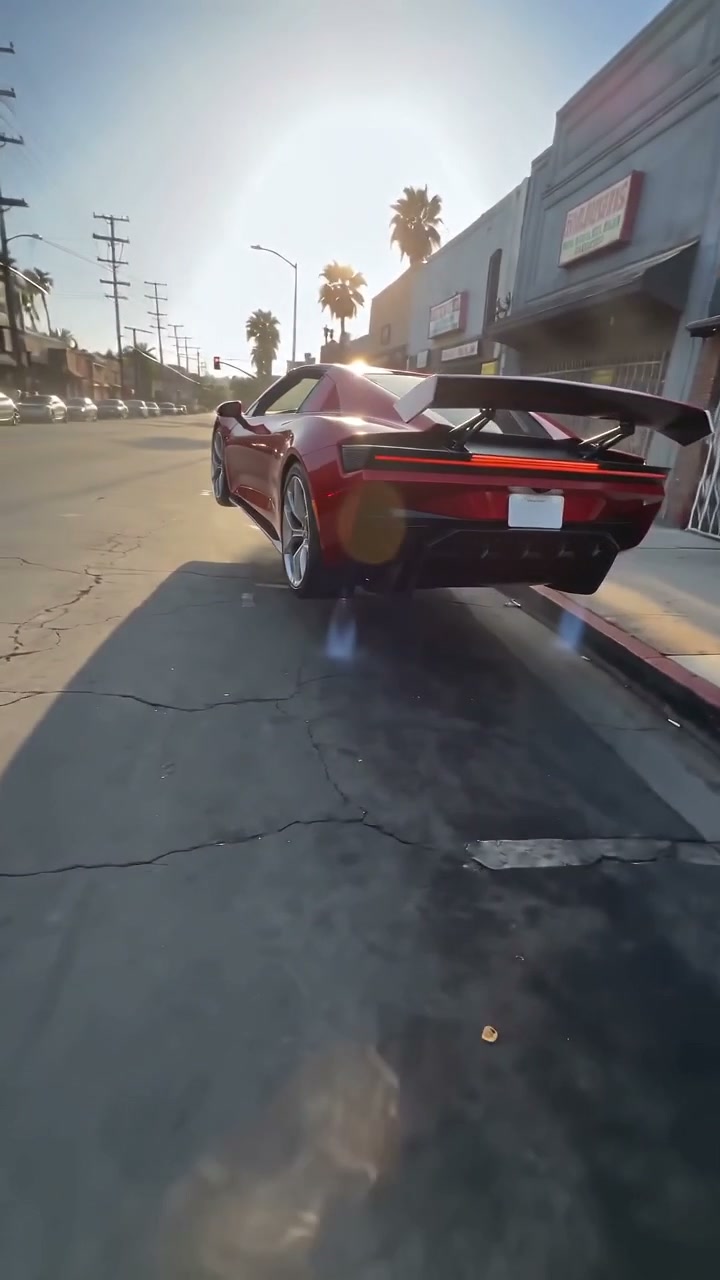
Use the referenced vehicle on a quiet city street. Hold a rear three-quarter view as all four attached wheels rise above the stopped queue. Follow one smooth forward glide. Preserve the vehicle's paint and body shape. Fictional AI scene.
This example is for tools that accept custom prompts. This site's creator uses the selected template's prepared instructions.
The term describes a vehicle imagined or designed to travel on roads and through the air. Here it names a creative video subject. The studio animates photos into fictional scenes, and the generated movement is not evidence that the photographed vehicle can perform it.
Is every flying car clip online AI?
No. Different sources use similar titles for demonstrations, fiction, games, and edits. Check the original publisher and surrounding context for a particular clip. Every generated result from this studio is AI entertainment, regardless of how realistic its lighting or camera movement looks.
Do I need a Tesla or a Roadster?
No. The flying car effect can use a supported photograph of another vehicle. Selfie mode supplies a generic car instead. The service is independent and is not affiliated with or endorsed by Tesla or any vehicle manufacturer.
Can I use only one photograph?
Yes, when the selected mode supports it. A vehicle photo identifies the car; a portrait identifies the driver. To make a flying car scene featuring both your own face and your own vehicle, select the combined mode and provide one clear reference for each.
Is this a template or a filter?
It is an AI generation workflow with prepared scene instructions. A flying car template controls the intended action and viewpoint while your images guide the subject. It is not a physical vehicle upgrade, and results can vary between runs.
Is generation free?
Browsing the examples and published prompts does not require purchasing a generation. Rendering uses the credits shown in the quote. Any trial must be explicitly displayed with its conditions; free access to a guide does not mean unlimited free video creation.
How long will my video take?
The result’s duration and the time spent processing are different measurements. Check the scene settings for clip length and the task status for progress. Queue conditions and preparation can affect completion time, so a fixed turnaround is not promised.
Are my uploads public?
No. Files and results are private by default. Sharing requires a separate action and can be revoked. Check retention details in your account, and download any finished flying car video you want to keep before it expires.
Can I make a flying car video in a phone browser?
Yes. The flying car workflow runs in a browser, so a separate app or desktop computer is not required. Choose an available template, select the requested photos, check the thumbnails and output settings, then sign in and review the quote before generating. If an upload fails, check the scene’s file-type and size requirements before trying again. Follow the photo-to-video steps.
Will closing the browser cancel my flying car generation?
Closing the browser does not cancel an accepted flying car task. Sign back into the same account and open My creations to check its status. A queue means the task is waiting for provider capacity, so check the existing job before starting another paid run. If a status remains unclear, contact support with the creation ID. Find task and download help.
Give an ordinary drive an impossible ending
Choose the photos that make the scene personal. Compare the enabled examples, review the settings and price, and create your flying car video. Start with a readable lift and a clear story; add more ambition only when the basics look right.
 Flying Roadster AI